The earlier pages of this section were about bytes and pixels. This one is about meaning. Every content image says something, and the question here is how the page goes on saying it when the pixels are not there, not seen, or not suitable: to a screen reader user, to a reader on a failing connection, to software that indexes the page, to someone using a high contrast theme, and to a reader in Cairo or Madrid.
1. alt is the alternative, not a virtue signal
The alt attribute of <img> holds the image's text alternative: the text that stands in for the image whenever the image itself cannot do its job. HTML requires it. An <img> without alt is invalid markup in all but a few narrow cases, and every validator and accessibility checker will flag it.
Because the requirement is so easy to check, it is also easy to satisfy badly. A team that adds alt="image" or alt="photo" to every tag to silence a linter has passed the test and failed the reader. That is alt text as a virtue signal: it shows that someone knew the attribute was expected, and gives nothing to the person it exists for. The point of the attribute is in its name. It is the alternative, so the right question is never "is there alt text?" but "if this image were replaced by its alt text, would the page still work?"
The HTML standard frames it the same way. Its advice is to write the alt text as if you were reading the page aloud to someone over the phone, or as if the image had been removed and you had to put words in its place. The words should fit the sentence around them and carry the same information. They should not announce that there is an image, because the screen reader already does that, and they should not describe the picture for its own sake, because the reader wants the page's point, not an inventory of pixels.
WCAG, the Web Content Accessibility Guidelines that most accessibility law points to, makes this its first success criterion: 1.1.1 Non-text Content (Level A) asks that all non-text content have a text alternative that serves the equivalent purpose. "Equivalent purpose" is the phrase to remember. Alt text is judged by whether it does the image's job, which is why the same picture can need different alt text on different pages.
2. A decision tree for alt text
Most alt text questions are settled by first deciding what kind of image you have. The W3C's Web Accessibility Initiative (WAI) publishes an images tutorial built around five kinds, and a short decision tree for telling them apart. The tree asks a few questions in order and stops at the first "yes".
| Kind | What it is | Its alt text | Example |
|---|---|---|---|
| Informative | A photograph, illustration or simple graphic that adds information | A short phrase or sentence carrying that information | The photograph of the cat in section 3 |
| Decorative | Adds only visual interest, or repeats what nearby text already says | alt="", so assistive technology skips it | A flourish between sections; an icon beside a text label |
| Functional | The only content of a link or button | What happens when it is used, not what it looks like | A logo linking home: alt="Trail Notes, home" |
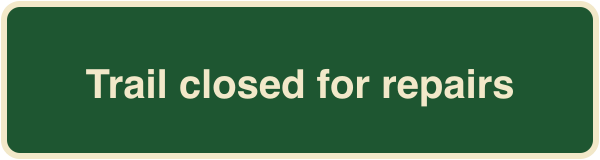
| Image of text | Text drawn into pixels | The same words; better, replace the image with real text | The trail signs in section 6 |
| Complex | A chart, diagram or map whose information does not fit in a sentence | A short alt naming it, plus a full description or data on the page | The bar chart below |
Decorative images: empty, not missing
A decorative image that has to be in the markup gets alt="", an attribute that is present and empty. That is a statement: "this image has no text alternative, because it says nothing". Browsers map an <img> with empty alt to no role at all in the accessibility tree, so screen readers pass over it silently. The deck calls this Method 3 for presentational images: not the best place for decoration, which belongs in CSS (see Images in CSS), but correct when the image must be an element.
A missing alt says something quite different. It tells the browser that the author did not say what the image is, so it is treated as a content image of unknown meaning. A screen reader still announces it, and with no alternative to read, many fall back to whatever they can find, often the file name. Section 4 shows what that sounds like.
Functional images: say where it goes
When an image is the only thing inside a link or a button, its alt text becomes the link's or button's accessible name, the words a screen reader announces and voice control users speak to activate it. Describe the action, not the picture. A magnifying glass inside a search button is alt="Search", not alt="magnifying glass". A logo linking to the home page names the destination: alt="Trail Notes, home". An arrow linking to the next page says alt="Next page". If the link also contains visible text, the image repeats it and should be alt="", or the reader hears "Search Search".
Complex images: describe the data
A chart carries more than a sentence can hold. The alt text should name the chart and give its main point, and the full information should be on the page, in a paragraph or a data table that every reader can use. The image can point at its description with aria-describedby, so a screen reader offers the description as well as the name. (The old longdesc attribute, which linked to a separate page, is not part of current HTML.)
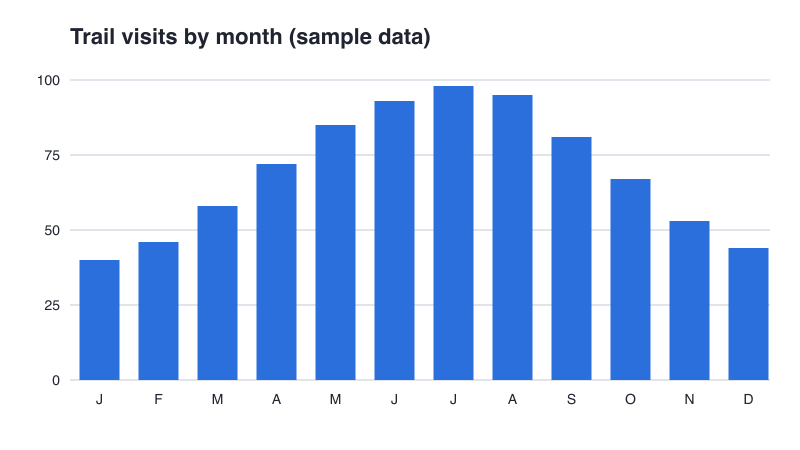
The chart's data as a table
| Month | Jan | Feb | Mar | Apr | May | Jun | Jul | Aug | Sep | Oct | Nov | Dec |
|---|---|---|---|---|---|---|---|---|---|---|---|---|
| Visits | 40 | 46 | 58 | 72 | 85 | 93 | 98 | 95 | 81 | 67 | 53 | 44 |
Notice what the description does not say: "twelve blue bars on a white background with gridlines at 25, 50, 75 and 100". That describes the drawing. The reader wants what the drawing shows, which is the trend and the numbers. The table also helps sighted readers who want an exact value that a bar's height only suggests, and if the chart were drawn as inline SVG instead of a PNG, its text would be real text as well (SVG and vector images shows how).
3. Writing good alt text
The hard part of alt text is not the syntax. It is deciding what the image is for, on this page, for this reader, and then saying that in as few words as do the job. The deck's example makes the point with a cat.


Which of these is the better alternative?
The first is not wrong, exactly, but it is thin. "A picture of" wastes words, because the screen reader has already said "image". "A cat" is true of millions of photographs. A sighted reader learns at a glance that this cat is black and white, has a name and an attitude, and is watching something outside; the first alt gives a blind reader none of that. The second gives them roughly what the picture gives everyone else, in one sentence. It names him, because the page is about him, and it chooses the details a person would mention: his coat, where he is, what he is doing, and the whiskers anyone would notice.
A few habits produce alt text like the second one:
- Lead with what matters. Screen reader users often move on after the first few words, so put the subject first.
- Skip "image of" and "picture of". Do say "photograph", "illustration" or "screenshot" when the medium itself matters.
- Be specific where the page needs it, brief everywhere else. There is no fixed character limit, but a sentence or two is the usual ceiling. Anything longer belongs in visible text, where everyone can read it.
- Do not repeat the caption or the surrounding text. If the paragraph beside the photo already says it, the alt can be shorter or, at the extreme, empty.
- Write it in a sentence's voice, with normal capitals and a closing period, so a screen reader pauses naturally after it.
Purpose changes the right alt
The same photograph needs different words on different pages, because it does a different job on each:
| The page | What the image is for | A good alt |
|---|---|---|
| A blog post about our cat | Introducing him | "Chairman Meow, a black-and-white tuxedo cat, gazes out of the window past red flowers." |
| An article on keeping cats safe at open windows | Showing the guard rail in use | "A cat sitting at an open window behind a white metal guard rail that keeps him from the ledge." |
| A shelter's adoption listing | Helping someone recognize and choose him | "Chairman Meow: black coat with a white chest, white muzzle and long white whiskers, yellow-green eyes." |
| A sidebar card whose heading already reads "Chairman Meow" | Decoration beside the name | alt="" |
None of these can be generated from the pixels alone, because the pixels are identical in all four. Only the author knows what the image is doing, which is why alt text is an authoring task and not a property of the file.
alt, figcaption and title
Three pieces of text can sit near an image, and they do different jobs:
| Text | Who gets it | Its job |
|---|---|---|
alt | Only people who do not get the image: screen reader users, readers whose image failed, software | Replaces the image |
<figcaption> | Everyone, as visible text | Adds to the image: credit, context, the takeaway |
title | Mouse users who hover and wait; not touch or keyboard users; screen readers inconsistently | An advisory tooltip; not a reliable alternative |
The alt and the caption should not say the same thing, or a screen reader user hears it twice. The cat figure above shows the division of labor: the alt describes what is in the photograph, and the caption gives its name and credit, which a sighted reader also needs. The HTML standard allows a missing alt on an image inside a <figure> whose caption describes it, but that exception exists for cases like photo-sharing sites where the author cannot write an alt. When you can write one, write one.
The title attribute is not a substitute. It appears only on hover, so touch screen and keyboard users never see it; screen readers may read it, ignore it, or read it in addition to the alt. Browsers will use it as an image's accessible name when alt is missing, but that is a fallback for broken markup, not a technique. The HTML standard itself says relying on title is discouraged.
Alt text as closed captions
The deck closes its alt slides with a comparison worth keeping: think of alt text the way you think of closed captions on video. Captions exist for people who cannot hear the audio, yet many people who can hear turn them on anyway, in a noisy room, a quiet library, or a second language. Good alt text works the same way. It serves the reader who cannot see the image, and it also serves the reader whose image did not load, the reader who uses a text-only view, and the reader who wants to know what they are looking at. Writing it well is a small, visible sign of care for the people using the page, and of skill as a developer.
4. When images fail
Alt text is usually filed under accessibility, and it belongs there. It is also plain engineering. Good engineers ask what happens when a part fails, and images fail all the time: the URL has a typo, the CDN is down, a corporate proxy blocks the image host, an email client hides images until the reader allows them, a phone on a weak signal gives up halfway, a data-saving mode skips them, or the reader is using a text-mode browser. The question is the deck's: what happens if important content is in an image and the image does not work? The answer is the alt text. When an image cannot be shown, most browsers draw its alt text in its place, so the alternative is literally the fallback.
The demo below lets you see the same thing visually. It is a short article with a logo link, an icon link, three photographs and a decorative divider, plus one weak alt and one missing alt, labeled as what not to do. Turn the switch on and every image is replaced by its alt text, the way a reader without images meets the page. Read the page that remains: does it still make sense? The divider disappears without a trace, as it should. The daisy becomes the single word "image". The missing alt becomes a file name.
Alt text is what software reads
The deck's other argument is that alt text is how machines understand images, and that part has changed. In 2026, multimodal AI models can look at a photograph and describe it reasonably well, some screen readers and browsers offer generated descriptions of unlabeled images, and authoring tools suggest alt text on upload. The deck's claim that AI "doesn't understand what pixels mean" is no longer true as stated.
The argument for writing alt text survives anyway, for three reasons.
- A model sees the pixels, not the purpose. It can say "a black-and-white cat at a window". It cannot know that the page is about window guards, or that the cat is named Chairman Meow and up for adoption. The table in section 3 is four different alts for one set of pixels; only the author can choose among them.
- Generated descriptions can be confidently wrong, and the reader who cannot see the image is the one least able to notice.
- Most software reads the markup, not the image. Search engines use alt text as a strong signal for what an image shows and for image search. Reader modes, feed readers, text extraction for language models, translation tools and plain-text email versions all work from the HTML. Text that is in the page travels with it; meaning that exists only in pixels has to be guessed at, every time, by every consumer.
So use generated alt text, if at all, as a first draft that a person checks against the image's purpose. Good alt text is good machine support for the same reason it is good human support: it states what the author meant.
5. Users' settings: colors, contrast and motion
Readers can tell their systems how they want pages shown, and images have to survive those choices. CSS for people covers the preference media queries; here is what they mean for images.
Forced colors
Windows contrast themes (formerly High Contrast Mode) replace a page's colors with a small palette the user has chosen, often light text on black. Browsers that support it run the page in forced colors mode, and the forced-colors: active media query, which is Baseline widely available, tells the page so. What forced colors does to images is specific, and worth knowing exactly:
| Image | In forced colors mode |
|---|---|
<img> (any format, including SVG) | Left alone: the pixels are drawn as they are. A dark logo on a transparent background can vanish against a forced black background. |
background-image with url() | Kept. Browsers draw a solid "backplate" behind text so text over the image stays readable. |
background-image without url() (gradients) | Removed: it computes to none. |
Inline <svg> | Its own colors are preserved, but anything drawn with currentColor takes the forced text color. |
Two practical rules follow. First, draw icons as inline SVG in currentColor: they then follow the user's palette automatically, in forced colors as in dark mode, with no extra code. Second, test any transparent PNG or SVG logo against both a light and a dark background. If it disappears, give it its own backing in forced colors mode:
The forced-color-adjust property is supported by the Chromium browsers and Firefox but not Safari, so it is not Baseline; that matters little here, because forced colors modes are a Windows feature and Safari never enters one. Use the media query for small repairs like this, not to design a second theme: the point of forced colors is that the user's palette wins.
Dark mode and contrast preferences raise a related problem. Text laid over a photograph has contrast that changes from patch to patch of the image. A semi-transparent dark layer over the photograph, as on What an Image Costs, guarantees a floor; a chart drawn in fixed colors may need a dark-scheme variant, which <picture> can select with media="(prefers-color-scheme: dark)", as Images in HTML shows.
Animated images and reduced motion
Motion on screen can distract, and for people with vestibular disorders it can cause dizziness and nausea. WCAG 2.2.2 Pause, Stop, Hide (Level A) applies to any moving content that starts automatically, lasts more than five seconds and appears alongside other content: the user must be able to pause, stop or hide it. An animated GIF that loops forever meets all three conditions, and HTML gives an <img> no pause control at all. The section's 2.4-second pan across the lake, pan.gif, loops indefinitely, so on a real page it would fail this criterion.
Two fixes, which combine well. First, honor the reader's system setting: prefers-reduced-motion is Baseline widely available, and <picture> can use it to choose a still image. Second, prefer video: as Raster formats shows, a short video is a small fraction of the GIF's bytes, and <video> has controls.
Here the animated WebP is offered only when the reader has expressed no preference, and everyone else, including browsers that support neither the query nor WebP, gets the still frame (pan-still.jpg is the pan's first frame, 7,976 bytes against the GIF's 1,872,830). The alt is the same in both cases, because the image means the same thing either way. If a page must start an animation automatically, add a visible pause button and check matchMedia("(prefers-reduced-motion: reduce)") in script before starting it.
6. Images across languages and cultures
A web page can be read anywhere, translated by the browser in a click, and published in many languages at once. Text handles that well. Images, unless you plan for it, do not.
Text in images
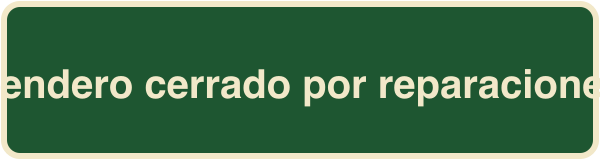
WCAG 1.4.5 Images of Text (Level AA) asks that text be presented as text, not as an image of text, wherever the technology allows, with exceptions for logos and for cases where the particular presentation is essential. The internationalization argument is just as strong as the accessibility one. The section's build script draws the same trail notice into a PNG three times, once per language:

| File | Language | Bytes | What went wrong |
|---|---|---|---|
sign-en.png | English | 4,673 | Nothing yet: the sign was designed around these words |
sign-es.png | Spanish | 6,338 | About a third longer; overflows its frame and is clipped |
sign-ar.png | Arabic | 3,923 | Right to left, so the layout and the font both had to change |
Every language means a new file, made by someone with the design tool and the right fonts, and every edit to the wording means remaking all of them. None of the three can be translated by the browser, resized by the reader without blurring, selected, copied or searched, and none adapts to dark mode. The same notice as real text is 24 bytes of English in the HTML, styled by CSS to look like a sign, and it does all of those things for free. Text in images is the one case the elimination step on What an Image Costs settles most clearly.
Alt text speaks the page's language
The language of an image's alt text is the language of the element, which it inherits from <html lang> like any other text. Screen readers use it to choose a voice and pronunciation, so alt text must be written in the page's language and translated with the page. Translation workflows usually extract alt along with the other strings, which is one more reason to keep meaning in alt rather than in pixels. When an image's words are in another language, as the Spanish sign above is on this English page, mark it with lang on the <img>, so a screen reader switches voice instead of reading Spanish with English rules.
Mirroring directional images
Arabic, Hebrew, Persian and Urdu are written right to left, and a page in one of them is laid out right to left as well: dir="rtl" on the root flips the inline direction, and layouts built with logical properties (margin-inline-start, padding-inline, inset-inline-start, border-inline-start) mirror themselves. CSS for people covers the layout side. Images need a decision of their own, because the browser never flips an image's pixels.
The test is whether the image points in the reading direction. Arrows for back and forward, "next" chevrons, a progress bar's fill, a reply or undo arrow: these encode direction and should mirror. Icons that depict real objects or fixed conventions should not: a magnifying glass, a map pin, a star, a clock (clocks run clockwise everywhere), a check mark, media playback controls, which follow the direction of the tape rather than of the text, and every logo. Photographs are never mirrored, because their contents, from faces to street signs, would be wrong.
Mark the icons that mirror, then flip them with the :dir() pseudo-class, which matches an element's direction whether it was set on the element or inherited from an ancestor. :dir() is Baseline widely available, in every engine since December 2023.
Per-locale images and culturally specific imagery
Some images should change with the locale even when they contain no text. A screenshot of an interface shows the interface in one language; a map shows borders and place names that differ by country, and some are disputed; a product photograph may show a plug, a keyboard layout or a currency that belongs to one market. Sites that publish in several languages keep per-locale versions of such images and let the server or the build pick the file for each language, just as it picks the translated text. (<picture> cannot choose by language: its media conditions test the device and the user's preferences, not the page's lang.)
Symbols carry cultural meaning too, and an icon that is obvious in one place can be confusing or rude in another:
- Gestures: a thumbs-up or an "OK" hand sign is friendly in some cultures and offensive in others.
- Marks: a check mark means "correct" in the United States, while Japanese schools mark correct answers with a circle and may use a check for a mistake.
- Colors: red signals danger in one culture and good fortune in another; white is associated with weddings in some places and mourning in others.
- Objects: a mailbox with a raised flag, a piggy bank, or a particular style of shopping cart is local, not universal.
- People and settings: photographs of people, food, clothing and homes say who a site expects its readers to be.
There is no universal icon set. The practical defenses are the ones the rest of this page teaches: pair icons with visible text labels, keep words out of pixels, give every image alt text that states its meaning, and when a site serves a market you do not know, ask people from it to look before you ship.
7. Summary
| Concept | Key points |
|---|---|
| alt is the alternative | Required on every <img>. It replaces the image when the image cannot do its job, so judge it by whether the page still works without the picture, not by whether the attribute is present. |
| The decision tree | Informative: say what it conveys. Decorative: alt="" or CSS. Functional: name the action or destination. Image of text: the words, or better real text. Complex: short alt plus a full description or data nearby. |
| Empty vs missing | alt="" means "skip me". A missing alt means "unknown", and screen readers may read the file name. |
| Writing alt text | Lead with what matters; skip "image of"; be as specific as the page needs and no more. The same image needs different alt text for different purposes. alt replaces, figcaption adds, title is not a substitute. |
| When images fail | Browsers show alt in place of a failed image. Software reads markup, not pixels; AI can draft descriptions but cannot know an image's purpose. |
| Forced colors | <img> and url() backgrounds are left alone; gradients are removed; inline SVG in currentColor follows the user's palette. Test transparent logos on dark backgrounds. |
| Motion | Looping GIFs fail WCAG 2.2.2 without a pause. Offer animation only under prefers-reduced-motion: no-preference, or use a video with controls. |
| Languages and cultures | No text in images (WCAG 1.4.5). Alt text is in the page's language and is translated with it; mark foreign words with lang. Mirror only directional icons, with :dir(rtl). Localize screenshots, maps and culturally loaded symbols. |