This page covers the markup side of images: the attributes every image needs, what the browser shows while an image is on its way or after it fails, how to caption one, and the two responsive-image tools HTML gives you, srcset on <img> and the <picture> element. It assumes the pixel arithmetic from What an Image Costs, in particular CSS pixels and device pixels.
1. The parts of <img>
<img> is a void element: it has no content and no closing tag, so everything it knows comes from its attributes. Four of them belong on almost every image.
| Attribute | What it does | Rule |
|---|---|---|
src | The URL of the image. With srcset it becomes the fallback candidate. | Required |
alt | The text alternative: what the image says, for anyone or anything that cannot see it. | Always present; empty (alt="") only for decoration |
width, height | The image's intrinsic size, as whole numbers of CSS pixels without a unit. The browser takes the aspect ratio from them. | On every content image |
srcset, sizes | Other files the browser may choose instead, and how wide the image will be laid out. | When one file cannot suit every screen (sections 4 and 5) |
loading, fetchpriority, decoding | When to fetch and how urgently. | Image performance |
The missing alt and the empty alt mean different things. An empty value is a statement: this image adds nothing, skip it. A missing attribute is silence, and screen readers fill silence with whatever they can find, often the file name: "lake underscore final underscore 2 dot jpg". Images for people teaches how to write the value; this page only insists that it is always there.
The width and height attributes look like styling, and in the 1990s they were. Today they are data: the size of the file. CSS decides how big the image is drawn. The attributes tell the browser the shape to reserve before it has a single byte of the file, which is the subject of the next section.
2. Before the image arrives, and when it never does
<img> is a replaced element: an element whose content comes from outside the document and is drawn into a box the layout reserves for it. The browser lays out the box; something else (the image decoder) fills it. <video>, <iframe> and <canvas> are replaced elements too. Two consequences follow. CSS cannot reach inside the picture, so ::before and ::after do nothing on an <img>. And the box exists before its content does, so the browser has to decide how big it is while the file is still on the network.
An image is inline by default, sitting on a line of text like a large letter. That is why an image alone in a block often has a few pixels of space beneath it: the gap left for the descenders of letters that are not there. display: block removes it.
While it loads
The HTML arrives first, the image later, sometimes seconds later. Until the browser knows the image's dimensions, it lays the page out as if the image were zero pixels tall. When the first bytes of the file arrive, the decoder reads the size from the file's header, the box grows, and everything below it is pushed down. A reader who had started reading, or was about to tap a link, sees the page jump. That movement is layout shift, and Google's Cumulative Layout Shift metric (CLS), one of the Core Web Vitals, scores how much of it a page does.
The width and height attributes prevent the jump. Browsers map them to the CSS aspect-ratio property, in effect giving every image aspect-ratio: auto 800 / 533 from the attributes. The auto means the real file's ratio wins once it is known; until then the attribute ratio sizes the box. This mapping is Baseline widely available (Chrome and Edge 79, Firefox 71, Safari 15).
The mapping only helps if CSS lets the height follow the width. The attributes also act as a default width and height in pixels, so a fluid image needs one rule to undo the fixed height while keeping the ratio:
With that rule an 800 by 533 image in a 360-pixel column is drawn 360 wide and 240 tall, and the 240-pixel box is there before the file is. Fluid and responsive images builds on this baseline and measures the shift it prevents.
When it never arrives
Images fail: a typo in a path, a server down, a reader who has turned images off to save data, a content blocker, a format the browser cannot decode. A visual browser then draws the alt text where the picture would be, sometimes beside a small broken-image icon, and the exact look differs from browser to browser. With alt="", visual browsers draw nothing at all, which is exactly right for a decoration. With no alt, the reader gets the icon and nothing else.
This is the oldest reason for alt text, and it is still a good test. Turn images off, read the page, and ask whether it still makes sense. If an image's alt text reads as nonsense in the flow of the paragraph, it is probably describing the picture instead of saying what the picture says.
3. <figure> and <figcaption>
A <figure> is self-contained content that the main text refers to and that could move elsewhere (to a margin, an appendix, the next page) without breaking the flow. Its optional <figcaption> is the caption, and it must be the figure's first or last child. A figure is not only for images: code listings, tables, quotations, diagrams and video all qualify, and this site puts every table and diagram in one.
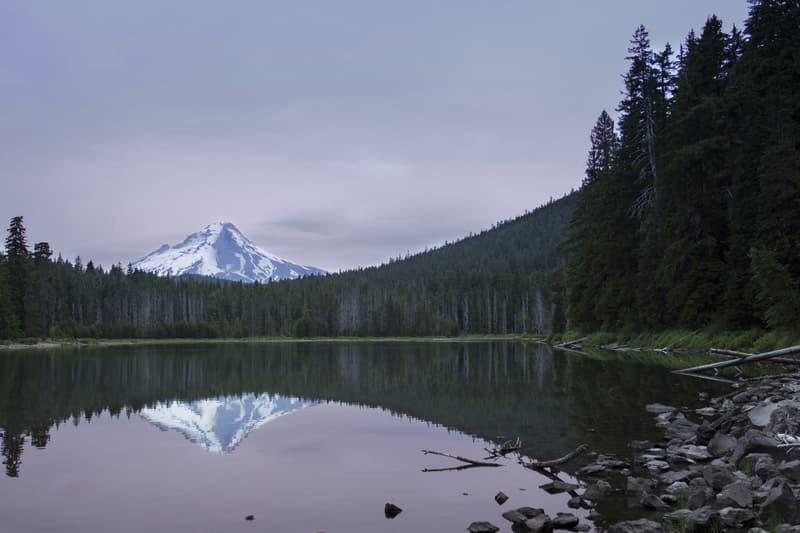
sizes that matches this column, and an <img> that carries the alt text and the shape. Photograph: Lake Mountain Landscape, Bonnie Moreland, CC0.The caption and the alt text do different jobs, and the difference is worth getting right:
alt | <figcaption> | |
|---|---|---|
| Who reads it | People and software that cannot see the image | Everyone |
| What it says | What the image says, in its place | What the image is about, in addition to it: context, source, credit |
| When it shows | Only when the image does not | Always |
| Markup | Plain text in an attribute | Any phrasing content: links, emphasis, code |
So they should not repeat each other. A screen reader announces the image's alt text and then the caption; if both say "Mount Hood reflected in a lake", the reader hears it twice. Let the alt text describe what is seen, and the caption add what is not: where, when, who took it, why it is here. A credit or a license belongs in the caption, never in the alt text.
The figure also gives its contents a name. In the accessibility tree a <figure> is a figure whose accessible name comes from its caption, so a screen reader that announces figures can say "figure, Mount Hood from the shore of a mountain lake". A loose image followed by a paragraph in italics has no such link.
4. Choosing a resolution: srcset with x descriptors
One file cannot suit every screen. What an Image Costs showed why: an image drawn 400 CSS pixels wide covers 400 device pixels on a DPR 1 screen and 800 on a DPR 2 phone. A 400-pixel file looks soft on the phone; an 800-pixel file is four times the pixels for the desktop reader who cannot see the difference.
The srcset attribute lists the files on offer. Each entry is an image candidate string: a URL, then optionally a descriptor, separated from the next candidate by a comma. The simplest descriptor is the pixel density descriptor, a number followed by x, which says how many image pixels this file has for each CSS pixel of the image's box.
| File | Descriptor | Pixels | JPEG bytes |
|---|---|---|---|
cat-400.jpg | 1x | 400 × 533 | 22,617 |
cat-800.jpg | 2x | 800 × 1067 | 72,417 |
cat-1200.jpg | 3x | 1200 × 1600 | 143,520 |
The browser compares each descriptor with the screen's DPR and picks a candidate; a DPR 2 phone takes cat-800.jpg, a DPR 1 monitor takes cat-400.jpg and saves 49,800 bytes. A candidate without a descriptor counts as 1x, and if no candidate is 1x, the src file joins the set as the 1x candidate. That makes the srcset above partly redundant (the cat-400.jpg 1x entry could go), but writing it out is clearer.
Density descriptors fit images whose drawn size is fixed in CSS: a 400-pixel product shot in a sidebar, a 48-pixel avatar, a logo. They say nothing about the layout, so sizes has no effect on them. They break down as soon as the image's box changes with the viewport. An image that is 100 percent of a phone's width and a third of a desktop's needs different pixels for different widths, not only densities. That is the next tool.
5. Choosing a size: w descriptors and sizes
A width descriptor is a number followed by w: the width of the file in pixels. Note the unit is w, not px; it describes the file, not the layout. With width descriptors the author states facts about the files and leaves the arithmetic to the browser.
The browser still needs one more fact: how wide the image will be drawn. It cannot measure, because it chooses the file before layout. The browser's preload scanner reads ahead through the HTML and starts image requests while the style sheets are still downloading, so at the moment it chooses, it does not yet know what the CSS will say. The sizes attribute is the author's promise of what the CSS will do.
sizes is a comma-separated list. Each entry is a media condition followed by a length; the last entry has no condition and is the default. The browser takes the first entry whose condition matches, so order matters, much as in an if/else if chain. The lengths may be any CSS length except a percentage, including vw, rem and calc(); a percentage has nothing to be a percentage of before layout. If sizes is missing, the browser assumes 100vw, which is right for a full-bleed image and wasteful for anything in a column.
Internally the browser turns each width descriptor into a density: the file's width divided by the slot width. In the diagram, lake-1200.jpg in a 420-pixel slot is 1200 ÷ 420, about 2.9x; lake-800.jpg is about 1.9x. From there it is the density problem from section 4: find a candidate dense enough for the screen. A DPR 2 screen needs at least 2x, so 1200 it is.
| File | Descriptor | JPEG bytes | Chosen when the slot × DPR is |
|---|---|---|---|
lake-480.jpg | 480w | 13,520 | up to 480 pixels: a small phone at DPR 1 |
lake-800.jpg | 800w | 33,646 | 481 to 800: a 380-pixel phone at DPR 2 |
lake-1200.jpg | 1200w | 70,458 | 801 to 1200: a 420-pixel slot at DPR 2 |
lake-1600.jpg | 1600w | 119,398 | above 1200: a wide window at DPR 2 or 3 |
Rules that trip people up
- Do not mix descriptor types. The HTML standard requires that if any candidate in a
srcsethas a width descriptor, they all do. A set of1xand800wis invalid, and what a browser does with it is not something to rely on. To combine density thinking with layout, use width descriptors: they already account for density. sizesis ignored with x descriptors. It only means something when there are widths to divide by it.sizesmust match the CSS. The browser believes it. Promise100vwfor an image drawn in a 300-pixel card and a DPR 2 phone fetches a file sized for the whole screen; promise too little and the image is soft. The browser never corrects the promise after layout.- The choice is the browser's. The standard says the browser picks a candidate "in an implementation-defined manner", and mentions density, zoom and "possibly other factors such as the user's network conditions". A browser may pick a smaller file on a slow connection or when the reader has asked to save data, and current browsers keep using a larger candidate they already have in cache rather than download a smaller one. Write
srcsetas a menu, not an order.
That last rule surprises everyone the first time. Load a page in a wide window, then narrow it: Chrome keeps the large file it has already decoded, because fetching a smaller one would cost bytes to save nothing. Testing responsive images therefore needs a cold start: DevTools open, Disable cache ticked in the Network panel, the window set to the width under test, then reload.
Writing sizes by hand is the hardest part, because it repeats the layout's arithmetic in a second language. Fluid and responsive images works one example through from a grid layout to the attribute. It also covers sizes="auto", which lets a lazy-loaded image use its real laid-out width, since by the time a lazy image is fetched, layout has happened. It is not Baseline yet: as of October 2026 Chrome and Edge (126) and Firefox (150) support it, Safari does not, so it is written first in a list that falls back to an ordinary sizes value.
6. <picture> and <source>: formats with type
srcset lets the browser choose among sizes of one file. It cannot offer a different format, because nothing in a candidate string says "use this only if you can decode AVIF". A browser that guessed wrong would download a file it could not draw. The <picture> element solves that: it wraps an <img> with any number of <source> elements, each a conditional srcset.
The rules are short, and each one matters:
- Order is priority. The browser reads the
<source>elements top to bottom and uses the first whosetypeit supports and whosemediacondition matches. Later sources are not considered, even if they would suit better. Put the best format first. typeis checked without a download. It is a MIME type the browser compares with its own list of decoders, so an unsupported format costs nothing but a line of HTML.- A
<source>usessrcset, notsrc, and may also carrysizes,media,type,widthandheight. - The
<img>is required and comes last. It is the fallback for browsers that match no source, and more importantly it is the element that is actually drawn. The chosen source only supplies its URL.alt,width,height,loading,decodingandfetchpriorityall go on the<img>, and so does all CSS.<picture>itself draws nothing; style theimginside it.
Every <source> can carry its own srcset with width descriptors and its own sizes, so format choice and size choice combine: the browser first picks the source, then picks a candidate inside it. The figure in section 3 does exactly that, and the bytes it saves are real:
| File | Format | Bytes | Support |
|---|---|---|---|
lake-800.avif | AVIF, quality 50 | 21,823 | Baseline widely available since July 2026 |
lake-800.webp | WebP, quality 75 | 28,728 | Baseline widely available |
lake-800.jpg | JPEG, quality 75 | 33,646 | Everywhere |
With AVIF and WebP both Baseline widely available, every current browser takes the first source, and the WebP and JPEG lines serve only older browsers. That is still worth a few lines of HTML: the fallbacks cost nothing to a browser that never reads them, and they keep the page working for readers on older devices. The same mechanism is how a site can offer a newer format, such as JPEG XL, to the browsers that have it before it is Baseline. Raster formats compares the formats themselves.
The browser's choice is visible from script as img.currentSrc, the URL actually in use, while img.src still reports the fallback in the src attribute. The demo above uses currentSrc to show its choice.
7. Art direction and preferences with media
Everything so far has been resolution switching: the same picture at different sizes or in different formats. The files are interchangeable, and the browser is free to take any of them. Art direction is different. It means showing a different picture, usually a different crop, because the layout calls for it. A wide landscape photograph shrunk onto a phone turns the mountain into a speck; the phone needs a tighter crop that keeps the subject large.
| Resolution switching | Art direction | |
|---|---|---|
| The files are | The same picture, at other sizes or formats | Different pictures: crops, compositions, color versions |
| Markup | srcset and sizes; <source type> | <source media> |
| Who decides | The browser, using hints | The author, by a rule the browser must follow |
| If the browser picks "wrong" | Harmless: a sharper or smaller copy | Not allowed: a matching media is obeyed |
A media attribute on <source> holds a media query, and unlike sizes it is a command: if the query matches and the type is supported, the browser uses that source. The art-directed version of the lake photograph uses a square crop on the peak below 36rem and the full scene above it, each in three formats:
Three details make this work. First, the narrow JPEG needs a <source> of its own: without it, a browser on a narrow screen that supports neither AVIF nor WebP would fall through to the wide <img>. Second, the crops have different shapes, 1:1 and 3:2, so the width and height on the <img> would reserve the wrong box on a phone. Giving each <source> its own width and height fixes that; this is Baseline widely available (since June 2025; Chrome 90, Safari 15, Firefox 108). Third, there is one alt, on the <img>, so it must be true of every crop. Art direction changes the framing, not the meaning: if the narrow crop dropped something the alt text mentions, the crop would be the wrong one.
Use rem in media conditions and in sizes, as the rest of this course does. Inside a media query, em and rem mean the same thing: the browser's default text size, which is 16px unless the reader has changed it. They do not follow the element's font size, the page's own html { font-size }, or the container the image sits in. So 36rem is 576 CSS pixels and 40rem is 640 at the default size, and a reader who has enlarged their text gets the layout, and the crop, meant for that much space. The vw lengths in sizes are measured from the window too; only sizes="auto" sees the real slot, as Fluid and responsive images explains.
Preferences: prefers-color-scheme and others
A media condition is not limited to widths. Any media feature works, including the user preference queries. The commonest is a dark-mode version of an image whose light background would glare in a dark page: a chart, a diagram, a screenshot. Light and dark in the Color section covers which images need a dark version and which, like photographs, do not.
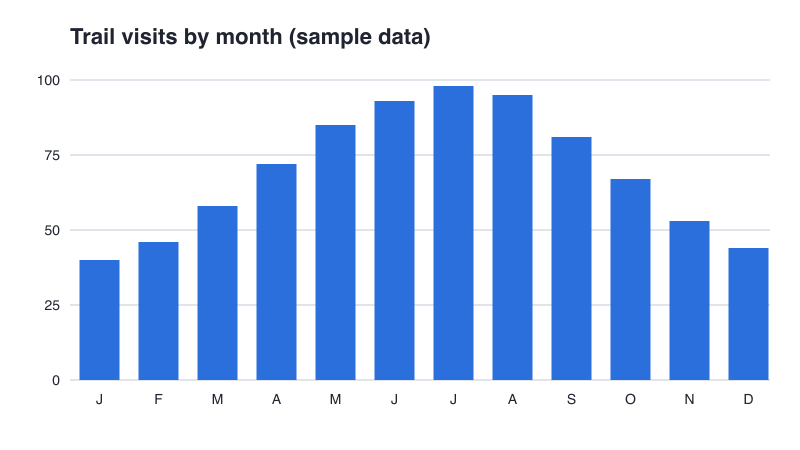
prefers-color-scheme: chart.avif is 4,727 bytes and chart-dark.avif 4,604. Switch your system's color scheme and the chart follows.Order again decides: the dark sources come first, because a dark-scheme browser that supports AVIF matches both the first and the third source, and only the first match counts. Browsers watch the environment for changes and can run the selection again; in current Chromium browsers the swap is immediate when the system color scheme changes. Check your own browser in the demo.
Conditions combine as they do in CSS, with and, so media="(max-width: 36rem) and (prefers-color-scheme: dark)" picks a dark narrow crop. Other preferences are equally available: (prefers-reduced-motion: reduce) can swap an animated image for a still one, which Images for people takes up. Two cautions. A drawing that only needs new colors is better as an SVG that restyles itself, as the logo on What an Image Costs does, than as two raster files. And an image that is pure decoration belongs in CSS, where Images in CSS shows the same switch done with a media query.
8. The source explosion, and letting a build step write the variants
Each technique on this page multiplies the one before. One photograph, offered in three formats at four widths, is twelve files. Add a second crop at two widths and it is eighteen. Add a dark-mode version and it doubles. The markup grows the same way: the art-directed example in section 7 runs to more than twenty lines for one image, and every URL in it must name a file that exists with the width its descriptor claims.
| Decision | Variants | Running total |
|---|---|---|
| One file | 1 | 1 |
| Three formats (AVIF, WebP, JPEG) | × 3 | 3 |
| Four widths | × 4 | 12 |
| A second crop at two widths | + 2 × 3 | 18 |
| Light and dark versions | × 2 | 36 |
Nobody should make thirty-six files by hand, and nobody should type the markup for them either. A hand-made set drifts: someone re-exports one width at a different quality, a file named -800 turns out to be 750 pixels wide, a new photograph gets only a JPEG. The answer in production is to treat the variants as build output, made by a program from one master file each, the same way compiled code is made from source.
This site does exactly that. Every image in this section comes from scripts/images/encode.mjs, a short Node script using the sharp library, which reads the masters in images-src/, writes every format and width into the media folder, and records each file's real width, height and bytes in a manifest.json. The byte counts in this page's tables are read from that manifest; none were typed from memory.
The same idea scales up in several directions. A static site generator can write the <picture> markup from the manifest, so the HTML and the files cannot disagree. A framework's image component does both at once. An image CDN makes variants on request from a URL such as lake.jpg?w=800&format=avif, and caches them. Whatever does the work, the author's job shrinks to the decisions that need a person: which image, which crop, what alt text, and the sizes value that describes the layout.
The other answer to the explosion is restraint. Not every image needs every variant. Four widths is often more than enough, and the gap between them should reflect real savings, not symmetry. A small icon needs no srcset at all if it is an SVG. With AVIF now Baseline, some sites ship AVIF and JPEG only. Image performance takes up the build pipeline, quality settings and an image budget in detail.
9. Summary
| Concept | Key points |
|---|---|
The parts of <img> | A void element. src is the file, alt is the text alternative (empty only for decoration, never missing), width and height are the file's intrinsic size in CSS pixels. |
| Replaced elements and loading | The box is laid out before the content arrives. width and height map to aspect-ratio, so with max-inline-size: 100%; block-size: auto the box has the right shape at once and nothing shifts. |
| Broken images | Visual browsers draw the alt text in the image's place; with alt="" they draw nothing. Turning images off is a quick test of alt text. |
<figure> and <figcaption> | Self-contained content the text refers to, with a caption as first or last child. The caption adds context and credit; it does not repeat the alt text. |
| x descriptors | Densities for an image of fixed size. src counts as 1x. sizes is ignored. |
w descriptors and sizes | File widths, plus the author's promise of the drawn width, chosen before layout. First matching condition wins; the default is 100vw. Never mix x and w in one srcset. The browser may pick any candidate, and keeps larger cached ones. |
<picture> and type | Sources are tried in order; the first with a supported type and matching media wins. The <img> is required, renders the result and carries alt, dimensions and loading attributes. currentSrc shows the choice. |
Art direction and media | Resolution switching offers the same picture and lets the browser choose; art direction shows a different picture and the browser must obey. media takes any media query, including prefers-color-scheme. Sources can carry their own width and height for a different shape. |
| The source explosion | Formats × widths × crops × schemes multiply fast. Let a build step make the files and write the markup, as this site's encode.mjs does, and offer only the variants that save real bytes. |