The earlier pages taught what an image is, which format suits it, and how to write it into HTML and CSS. This page follows an image from the build step that encodes it, through the attributes on <img>, to the headers and servers that deliver it, and ends with measuring the result and holding the line with a budget.
1. The golden rule
An image used correctly is two things at once: pleasing, the right picture and good to look at, and fast, costing the reader as little time and data as it can. Correct = fast + pleasing. A beautiful image that takes six seconds to appear on a phone is not correct, and neither is one that loads instantly as a smear of compression blocks.
The context decides the balance. A data chart needs crisp text and lines and can lose most of its color subtlety; a photography portfolio is the opposite, because the pictures are the content.
The course states the whole subject as one rule:
“Load less data, less often, and consider carefully when you need it and make sure to fetch it from nearby.”
Shorter: less data, less often, when needed, from nearby. Each clause maps onto a group of techniques, and onto sections of this page:
| Clause | What it means for images | Sections |
|---|---|---|
| Less data | The right format, the right pixel dimensions, a sensible quality, no metadata, fewer files | 2, 3, 4, 5 |
| Less often | Cache headers that let the browser keep a file, and file names that change when the file does | 10 |
| When needed | The hero first, everything below the fold later or never; placeholders while waiting | 6, 7, 8, 9 |
| From nearby | A CDN edge close to the reader, and an image CDN that resizes and converts there | 11 |
The rule is old, and that is the point: pages have grown as fast as networks, and a byte not sent is still the fastest byte. What an Image Costs set out the order of attack (eliminate, reduce the number, reduce the size, load when needed); this page is the toolkit for the last three.
2. Choosing the format is a performance decision
Raster Formats chose formats by what each can represent. The same choice is the largest single performance decision for an image: the wrong format can cost ten times the bytes of the right one, and no quality slider makes up the difference.
The deck asks whether the format choice is clear: photographs are JPEG, drawings are PNG. Then it shows a chart, the flat image of text, lines and a few colors that dashboards are full of, and asks you to spot the difference. The same test with this section's files:
| File | Encoding | Bytes | How it looks |
|---|---|---|---|
chart.png | Palette PNG, lossless | 6,194 | Exact: sharp text and edges |
chart-same-bytes.jpg | JPEG at quality 8 | 5,892 | Smeared text, blocks and halos around every line |
chart.jpg | JPEG at quality 75 | 19,673 | Acceptable at a glance, faint halos on close inspection |
chart.webp | Lossy WebP at quality 75 | 6,664 | Close to exact; soft color edges if you zoom |
chart.avif | AVIF at quality 50 | 4,727 | Close to exact; check thin lines and small text by eye |
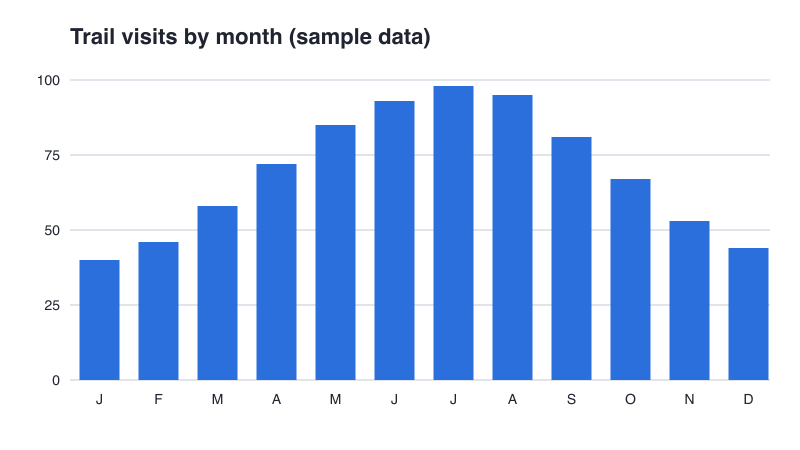
chart.png, 6,194 bytes.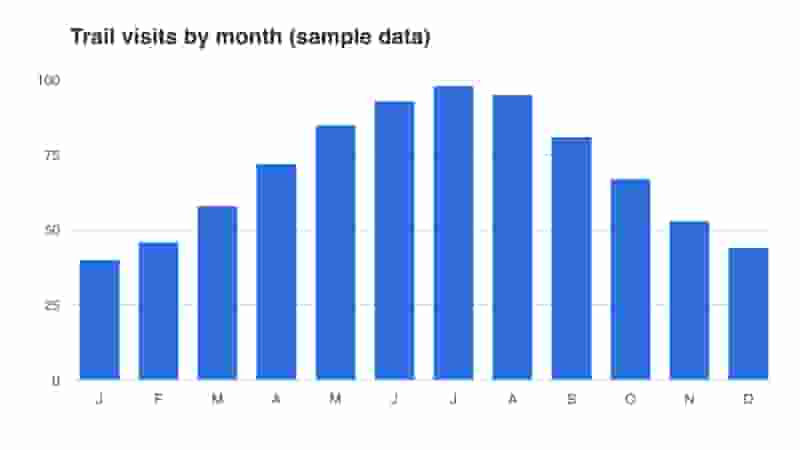
chart-same-bytes.jpg, 5,892 bytes: the highest JPEG quality that fits in the PNG's bytes. Apples to apples, and the PNG wins without contest.This is the deck's "apples to apples" test: give two formats the same bytes and see what each buys. JPEG's compression is built for the smooth gradients of photographs; on hard edges and flat color it rings and smears. A palette PNG stores the chart's few colors exactly. To match it, JPEG needs more than three times the bytes.
On a photograph the result flips: the lossless PNG of the daisy is 710,981 bytes against 11,840 for AVIF (page 01). So the question is which format is best for this kind of image:
- Drawings, icons, logos, diagrams: SVG first (SVG and Vector Images); if it must be raster, a palette PNG or lossless WebP.
- Photographs: AVIF, with WebP and JPEG fallbacks in
<picture>(Images in HTML). Both newer formats are Baseline, so the JPEG is insurance for older browsers. - Screenshots: try lossless WebP and AVIF and compare; the winner depends on the content.
- Animation: a video, not a GIF (section 3).
3. Optimizing
Once the format is right, optimizing means removing everything the reader would not miss. Five levers, roughly in order of savings:
Resize to the largest displayed size
The biggest waste on the web is still the camera-sized photograph shrunk by CSS. A phone photo is 4,000 pixels wide or more; an article column is perhaps 700 CSS pixels, or 1,400 device pixels on a high-density screen. Everything beyond that is downloaded, decoded and thrown away, and pixel math says the waste grows with the square of the width.
So find the largest size each image is displayed at, multiply by the highest device pixel ratio worth serving (about 2), and resize to that; then make smaller versions and let srcset and sizes choose (Fluid and Responsive Images). This section's lake is encoded at four widths for that reason: the 1,600-pixel JPEG is 119,398 bytes, the 480-pixel one 13,520.
Quality settings
Lossy encoders take a quality setting, usually 0 to 100, and the curve is not straight: near the top each step costs many bytes for an invisible difference, in the middle large savings cost little, and near the bottom the image falls apart. The daisy at five qualities in three formats:
| Quality | JPEG | WebP | AVIF |
|---|---|---|---|
| 10 | 5,383 | 6,434 | 3,562 |
| 30 | 11,750 | 9,262 | 5,963 |
| 50 | 16,796 | 12,278 | 11,840 |
| 70 | 23,506 | 15,440 | 20,689 |
| 90 | 46,997 | 33,382 | 45,982 |
Two lessons. The top of the scale is expensive: 70 to 90 doubles the JPEG and more than doubles the AVIF. And the scales do not line up: AVIF at 70 is larger than WebP at 70, because AVIF's 70 is a much higher quality. That is why this section's build uses 75 for JPEG and WebP but 50 for AVIF.
Stripping metadata
A photograph from a camera carries metadata: EXIF records of the camera, exposure and date, an orientation flag, sometimes a GPS position, plus color profiles and thumbnails. None of it is drawn, it can add tens of kilobytes, and a GPS position in a photo of someone's home is a privacy leak. Apply the orientation to the pixels first, then strip the rest. Most tools strip when they re-encode; check that yours does.
Palette reduction and lossy PNG
PNG and GIF can store each pixel as an index into a palette of up to 256 colors, one byte or less per pixel. For drawings that loses nothing: chart.png above is a palette PNG. For full-color images, pngquant picks the best 256 colors and dithers the rest: "lossy PNG", often half the bytes, with full alpha transparency, which GIF lacks.
The deck's animated GIF and animated PNG demos make the same point: "normal" and "optimized" look alike and differ greatly in bytes, because optimizers shrink the palette, store only the pixels that change between frames, and drop duplicate frames.
Animation: use a video
Better still is not to use a GIF. A GIF compresses each frame on its own in 256 colors; a video codec predicts each frame from its neighbors and stores only the difference. The same 30-frame pan across the lake:
| File | Encoding | Bytes | Compared with the MP4 |
|---|---|---|---|
pan.gif | Animated GIF, 256 colors | 1,872,830 | About 73 times larger |
pan.webp | Animated WebP | 213,402 | About 8 times larger |
pan.mp4 | H.264 video | 25,587 | The baseline |
pan.webm | AV1 video | 18,978 | About three quarters |
muted allows autoplay, playsinline stops phones going full screen, and the codecs parameter lets a browser without AV1 fall through to the MP4. Raster Formats covers the formats; Images for People covers readers who ask for reduced motion.
Don't go byte crazy
Optimization has a floor, set by the reader's eyes. The deck shows a JPEG crushed to about 13 KB with its artifacts plain to see. Taking the daisy JPEG from quality 50 to 10 saves 11,413 bytes, about one percent of a median home page's images, and visibly ruins it. Removing one needless image, or sending the right width, saves ten or a hundred times as much.
Stop when the image looks right at its displayed size on your readers' screens. An image that looks bad has failed, however few bytes it took.
4. Tools
Every lever above is a setting in a tool: interactive tools for learning and one-off images, command-line tools for a build that treats every image the same way.
| Tool | Kind | Good for |
|---|---|---|
| Squoosh | Web app (squoosh.app); the codecs run in the browser as WebAssembly | Comparing formats and qualities side by side with a split view, before deciding a build's defaults |
| sharp | Node.js library built on the libvips image library | A build step: resize, rotate, strip, encode JPEG, PNG, WebP, AVIF and GIF, fast |
| ImageMagick | Command-line suite (magick) | Shell scripts and one-off conversions; reads nearly every format there is |
| pngquant | Command-line tool | Lossy PNG: palette reduction with full alpha |
| SVGO and SVGOMG | Node.js tool, and a web interface to it | Removing editor clutter from SVG: metadata, hidden layers, needless precision |
Start with Squoosh: drop in a photograph, pick a format on each side of the split view, and drag the divider to see artifacts and bytes together. That builds the judgment the build will encode as defaults. SVGOMG does the same for SVG; exports from design tools often halve, because they carry editor metadata and needless decimal places.
A build pipeline: this site's own script
Hand-optimizing does not survive a real project: someone adds a camera original in a hurry and it ships. The durable answer is a build step that owns every variant. Every image file in this section was made by one script, scripts/images/encode.mjs, using sharp:
- Masters in, variants out. Originals live in
images-src/; the script writes every format, width and quality. Nobody edits an output by hand. - Defaults in one place. One object holds the quality per format.
- Orientation applied, metadata gone. sharp's
rotate()turns each photo upright from its EXIF flag, and sharp writes no metadata unless asked. - A manifest. Every file's bytes and dimensions go into
manifest.json, which the demos and tests read, so every byte count on these pages comes from a real file.
mozjpeg: true turns on mozjpeg's tuning: smaller, progressive JPEGs at the same quality. The same jobs in the shell:
5. Fewer requests: sprites and data URIs
Every image is a request, and for most of the web's history each request was expensive: HTTP/1.1 browsers opened about six connections per host, requests waited their turn, and the headers could outweigh a small icon. Two techniques grew up to cut the count: combining images, and putting images inside other files.
Sprites
A sprite sheet is many small images packed into one file; CSS moves a background so only the wanted region shows through each small element. As the deck says, it suits flat-color, lossless formats (GIF, PNG, SVG), not JPEG, whose compression blurs across cell boundaries.
This section's sprite, icons-sprite.png, holds four 48 by 48 icons in one 192 by 48 PNG of 2,322 bytes. The classic code positions it in pixels:
That code works at one size only. Sized relative to the element, the sheet scales with the text: stretch it to four times the element's width, and the positions 0%, 33.333%, 66.667% and 100% land exactly on each cell, because a percentage position aligns that fraction of the image with the same fraction of the element:
The modern replacement is an SVG sprite: one file of <symbol> elements, each drawn with <use>. This section's icons.svg holds the same four icons in 1,039 bytes, sharp at every size and stroked in currentColor, so it follows the text color and dark mode (SVG and Vector Images).
Why HTTP/2 changed the advice
HTTP/2 sends many requests at once over one connection with compressed headers; HTTP/3 does the same over QUIC, so one lost packet no longer stalls every stream. Both are Baseline. With the per-request overhead mostly gone, a sprite's costs stand out:
- Caching is all or nothing: change one icon and everyone downloads the whole sheet.
- Every page pays for every icon, used or not, in bytes and decoded memory.
- The cells are fixed: one color, one size, one density.
So under HTTP/2 and HTTP/3, raster sprites are mostly unneeded. The deck's wider lesson: technical "rules" are contextual and change with the environment. The SVG sprite survives because its reasons were never about request counts.
Inline images and data URIs
The other way to save a request is to put the image inside a file already on its way. A data URI is a URL that contains its own content: data:, a media type, usually ;base64, a comma, and the bytes as text. The deck's example was a single red dot.
The costs limit it to small images:
- Base64 adds about a third: every 3 bytes become 4 characters, so the 186-byte
lake-lqip.webpis 248 characters inline. - No separate caching: the image is downloaded again whenever the file containing it changes, and ten pages that inline a logo download it ten times.
- It delays what contains it: bytes inlined in a style sheet hold up rendering.
Use data URIs for a few hundred bytes needed at once, such as a blurred placeholder. For SVG, skip base64 and percent-encode the markup, which is smaller. For anything larger, a separate file wins.
6. The fold, the hero and LCP
Newspapers put the most important story above the fold. On the web, the fold is the bottom of the viewport when the page loads. Every screen puts it somewhere different, but the idea holds: what is above it loads first, and the rest can wait.
Most pages have one large image front and center, the hero. The page does not feel loaded until it appears, so it gets priority over every other image, which in practice means taking priority away from the rest.
Largest Contentful Paint
The standard measure of "the page feels loaded" is Largest Contentful Paint (LCP): the time from the start of navigation until the largest image or text block in the viewport is painted. Candidates include <img> elements, images inside SVG, video posters, CSS background images and block-level text. With a hero, the hero is almost always the LCP element.
LCP is one of Google's Core Web Vitals: 2.5 seconds or less is good, more than 4 seconds poor, measured at the 75th percentile of real page loads, so three readers in four must get a good experience. The LargestContentfulPaint API has been Baseline since December 2025, when Safari shipped it.
An LCP time breaks into four parts, each with its own fix:
| Part | What it is | What shortens it |
|---|---|---|
| Time to first byte | Until the HTML starts arriving | A fast server, a CDN (section 11) |
| Resource load delay | From the first byte until the hero's request starts | The hero in the HTML as an <img>, never lazy; fetchpriority="high"; preload if it is discovered late (7, 8) |
| Resource load duration | Downloading the hero | Fewer bytes: format, size, quality (2, 3); a nearby server; caching |
| Element render delay | From download to paint | No render-blocking CSS or JavaScript holding up the paint; no script that inserts the image late |
The middle two are where images are won and lost. The browser's preload scanner reads ahead through the HTML for URLs to fetch, but it only finds images written there. A hero set as a CSS background or inserted by a script cannot be requested until the CSS or script has run. Put the hero in the HTML.
Layout shift
The other Web Vital images affect is Cumulative Layout Shift (CLS): a score for how much visible content moves unexpectedly, over the worst burst of shifts. Good is 0.1 or less, poor more than 0.25. An image without width and height has no size until it arrives, then pushes the text down; the fix is dimensions on every content image (Fluid and Responsive Images). Only Chromium implements the Layout Instability API, so CLS field data comes from Chromium users.
7. Loading attributes: loading, fetchpriority, decoding
Three attributes tell the browser how urgent an image is. All are hints about when, and the deck had two of their defaults wrong, so here are the current facts:
| Attribute | Values | Default | Status (October 2026) | Use it for |
|---|---|---|---|---|
loading | eager, lazy | eager | Baseline, widely available | lazy on images below the fold |
fetchpriority | high, low, auto | auto | Baseline, newly available since October 2024 | high on the LCP image; low on images above the fold that matter less |
decoding | sync, async, auto | auto | Supported in every engine for years | Rarely needed; see below |
loading="lazy"
loading="lazy" makes the browser wait until the image nears the viewport. An image the reader never scrolls to is never downloaded.
"Near" is up to the browser, and it is further than you might think. Chrome, for example, has started lazy images 1,250 CSS pixels before the viewport on fast connections and 2,500 on slow ones; other engines use their own distances, and pages cannot change them.
The common mistake is a lazy hero. A lazy image cannot be requested until layout shows where it is, which means waiting for the CSS, and the preload scanner cannot start it. It still loads, late, and the LCP pays. Lighthouse's "LCP request discovery" insight flags it.
Lazy loading also needs width and height: without them every image starts with no height, all of them seem to be in the viewport, and all of them load.
fetchpriority
Browsers prioritize requests themselves. Chrome starts images at low priority, raises the first few large ones to medium, and raises those in the viewport to high once layout runs, by which time a hero has already waited behind scripts and style sheets.
fetchpriority="high" says up front what the browser would find out late: this image matters most. low does the opposite, for images above the fold that matter less, such as hidden carousel slides. The default is auto, not low as the deck had it.
Use it sparingly: mark one image high, the LCP element. Five "high" images are no higher than each other. The attribute also works on <link rel="preload">, <script> and fetch().
decoding
After an image arrives it must be decoded into pixels before it can be painted. decoding hints how that relates to painting the rest of the page:
sync: present the image together with the surrounding content.async: let the surrounding content paint first.auto: no preference. This is the default, notsync.
The effect is small: browsers decode most images off the main thread, and the hint changes at most whether the image appears in the same frame as its text. When a script swaps images, the element's decode() method, a promise that resolves when the image can paint, is the better tool. Otherwise, leave decoding out.
8. Preloading
Sometimes the browser cannot find the hero early: it is a CSS background, or a script inserts it. <link rel="preload"> in the <head> announces it before the CSS or script does:
as="image" gives the request the right priority and lets it match the later one. imagesrcset and imagesizes mirror the element's srcset and sizes, so the same candidate is preloaded; they are Baseline, widely available since June 2026. type lets a browser without AVIF skip the preload. The same preload can go in an HTTP Link header.
The deck's warning stands: preloading fights the browser, and the browser is often right.
- It competes with the CSS and fonts the first paint needs. Preload one image at most.
- Mismatches download twice: if the preload's candidates or format differ from what the element picks, both files are fetched.
- Unused preloads are waste, and Chrome warns about them in the console. Preloads outlive the designs they were written for.
- It is unnecessary for an
<img>in the HTML: the preload scanner finds it, andfetchpriority="high"is the whole fix.
So the order of preference for a hero is: an <img> in the HTML with fetchpriority="high"; then, only if the image cannot be in the HTML, a preload. Images in CSS covers preloading a background image, where the browser would otherwise find it only after the CSS.
9. Placeholders
An image still loading shows a blank box, or nothing and a jump later. A placeholder fills the box with something cheap that hints at what is coming. The image arrives no sooner, but the wait feels shorter and the layout stays put.
Dominant color
The cheapest placeholder is the image's dominant color as its background. The build computes it with sharp's stats() and records it in the manifest: for the lake, rgb(152 168 200), a misty blue. A dozen bytes of CSS, no request.
Blur-up
A step up is a low-quality image placeholder (LQIP): the photograph shrunk to a tiny size and stretched; the browser's smoothing turns it into a soft blur. This section's is lake-lqip.webp, 32 by 21 pixels, 186 bytes.


The real image paints over its own background, so no script is needed; the lazy-loading demo's hero does exactly this. In its log, the placeholder starts after the hero, because a CSS background is found only once the CSS has arrived; inlining it as a data URI (section 5) fixes that.
Since Chrome 112, LCP ignores images with fewer than 0.05 bits per displayed pixel, so a stretched 186-byte placeholder does not count as the LCP and cannot hide a slow hero from the metric.
History: lowsrc
The idea is old: Netscape's lowsrc attribute loaded a small image first and replaced it with the full one. It was never standardized, and HTML lists it as obsolete.
Today the CSS background does the job, or a progressive JPEG, which arrives coarse and sharpens (Raster Formats).
10. Caching
"Less often" is the cache's job. A file in the browser's HTTP cache costs no bytes and, if the cache may trust it, no request. Images are large and rarely change, so they cache well. The server sets the terms with Cache-Control:
| Directive | Meaning |
|---|---|
max-age=N | The copy is fresh for N seconds: the browser uses it without asking the server |
immutable | The file will never change, so the browser should not revalidate even when the reader reloads. Firefox and Safari honor it; Chrome does not support the directive, and since 2017 has avoided revalidating fresh subresources on a normal reload anyway |
no-cache | Store the copy, but revalidate with the server before every use |
must-revalidate | Once the copy is stale, never use it without revalidating |
public / private | Whether shared caches (a CDN, a proxy) may store it, or only the reader's browser |
Fingerprinted file names
A long max-age has a catch: change the image and readers keep the old one. So never change a file in place. Give each file a name containing a hash of its content, a fingerprint, such as lake-800.3f9a2c.avif; a new image gets a new name and the HTML points to it. Fingerprinted files can be cached for a year:
The HTML that names them is the opposite: revalidate it every time, so readers learn the new names.
Revalidation and 304
A stale copy need not be downloaded again. The browser sends a conditional request with the copy's ETag (a validator, usually a hash) in If-None-Match; if nothing changed, the server answers 304 Not Modified with no body: a round trip, almost no bytes. The short film 304 walks through one.
This site, asked for one of this section's images:
The site sends max-age=0, must-revalidate: the browser stores the image but checks before each use and gets a 304 if nothing changed. That cautious setting is right here, because these names are not fingerprinted, and a long max-age would strand readers with an old file after a re-encode. The cost is a round trip per image per visit, which fingerprinting would remove. cf-cache-status: HIT means a nearby edge answered, not the origin; alt-svc advertises HTTP/3.
11. CDNs, image CDNs and content negotiation
"From nearby" is about distance. Light in fiber covers about 200 kilometers per millisecond, and every request is a round trip, so a reader in Sydney fetching from Virginia waits on physics. A content delivery network (CDN) keeps copies on edge servers in cities worldwide and answers from the nearest; only a miss goes back to the origin.
An image CDN also changes the image at the edge: the URL asks for a width, a quality or "best format", and the service resizes and encodes on first request, then caches the result. Cloudinary, imgix and Cloudflare Images are examples. It moves the build of section 4 to the server, which suits sites full of user uploads, at the cost of a vendor's syntax and prices.
Content negotiation with Accept and Vary
"Best format" works through content negotiation: one URL, different content depending on request headers. Browsers list the formats they accept in the Accept header, so the server can send AVIF to those that list it:
Vary: Accept is essential: it tells every cache on the way that the response depends on Accept, so a CDN never hands a stored AVIF to a browser that cannot decode it. Accept-Encoding and Accept-Language negotiate compression and language the same way.
The markup gets shorter, but the logic moves to a server or vendor. <picture> is the vendor-free alternative: the browser picks by each <source>'s type, every file is a plain static file, and any host can serve it. Negotiation earns its complexity when images are many, change often, or come from users.
Client Hints
Client Hints are request headers such as Sec-CH-DPR and Sec-CH-Width that describe the device once the server asks with Accept-CH. Only Chromium browsers implement them, and each one used needs Vary. Treat them as an extra on top of markup that already works; srcset and sizes work everywhere.
12. Measuring
Every claim on this page can be checked on your own pages, and should be. Four tools cover most of it.
DevTools: the Network panel
Open DevTools, choose Network, and reload. Then:
- Filter to Img, so the status bar counts only images.
- Read transferred and resource size: transferred is what crossed the network, with headers; resources is the files' own size. "(memory cache)" or "(disk cache)" means nothing crossed.
- Disable cache to make each reload a first visit, then measure the repeat visit too.
- Throttle with a preset such as Fast 4G or Slow 4G; campus Wi-Fi flatters every page.
- Add the Priority column (right-click the headers): the hero should be High, and lazy images absent until you scroll.
An image request's Headers tab shows its Cache-Control and ETag; its Timing tab shows how long it waited, which is where a late hero gives itself away. The Rendering tab emulates dark mode, reduced motion and forced colors, to check <picture> sources and motion fallbacks.
Lighthouse and the Performance panel
Lighthouse, in Chrome's DevTools, loads the page under simulated mobile conditions. Since Lighthouse 13 (October 2025) its image audits are "insights" shared with the Performance panel:
- Improve image delivery: better format, quality or size, or video instead of a GIF.
- LCP request discovery: whether the LCP image was in the HTML, not lazy, and high priority.
- LCP breakdown: the four parts from section 6.
- Layout shift culprits: what moved, including images without dimensions.
- Use efficient cache lifetimes: files with short cache lifetimes.
The old "defer offscreen images" audit was removed, since browsers already deprioritize offscreen images. Lighthouse is one lab load on one simulated device: a checklist, not a verdict.
LCP and CLS from real readers
The thresholds are about real readers at the 75th percentile, which only field data measures. A page can observe its own LCP:
The browser reports a new entry each time a larger element paints; the last before the reader interacts is the LCP. Real monitoring sends it to a server and studies the distribution.
WebPageTest's filmstrip
WebPageTest (webpagetest.org) loads the page in a real browser from a chosen place and connection and records a filmstrip, a frame every tenth of a second. You see the frame where the hero appears, whether a placeholder filled the gap, and whether text jumped, and its waterfall shows a late hero plainly.
13. An image budget
Optimization done once decays: the next feature adds a carousel, the next campaign a 2 MB banner. A performance budget sets limits in advance and checks them on every change. For images, three lines:
- Total image bytes on first load of a typical page, on mobile;
- The LCP image's bytes, since it decides the metric;
- The largest single file, which catches the camera original that slipped through.
A worked example
Take an article page on a phone 400 CSS pixels wide at DPR 2: a hero, six cat photographs in a two-column grid below the fold, a chart, the logo and an icon set. Budget: 200,000 bytes of images, 40,000 for the LCP image, no file over 150,000. The hero needs 800 device pixels; the grid cells about 380, so the 400-pixel files fit.
| File | Bytes each | Count | Bytes |
|---|---|---|---|
lake-800.avif | 21,823 | one (the hero) | 21,823 |
cat-400.avif | 13,644 | six | 81,864 |
chart.avif | 4,727 | one | 4,727 |
icons.svg | 1,039 | one | 1,039 |
logo.svg | 900 | one | 900 |
| Total | 110,353 | ||
The modern path uses just over half the budget. A browser falling back to JPEG gets lake-800.jpg (33,646), six cat-400.jpg (135,702) and chart.png (6,194) plus the SVGs: 177,481 bytes, still inside, and far below the median mobile home page's 911 KB. With the grid lazy, a reader who stays at the top downloads about 25 KB of images.
Now break it: someone swaps in lake-1600.jpg "to look sharp", 119,398 bytes, three times the LCP limit, for pixels a phone cannot show. The budget catches it; the fix is to put the large file in the srcset, where only large screens choose it.
Enforce the budget where changes happen, in the build or tests. This section's own test fails if a media file passes 400 KB (two labelled bad examples excepted) or the folder passes 6 MB, and checks every byte count on these pages against the manifest.
14. Summary
| Concept | Key points |
|---|---|
| The golden rule | Correct = fast + pleasing. Load less data, less often, when needed, from nearby. |
| Format | The largest single decision. SVG for drawings, a palette PNG if it must be raster, AVIF with WebP and JPEG fallbacks for photographs. Compare formats at equal bytes or equal looks, never by the quality number. |
| Optimizing | Resize to the largest displayed size, choose a quality from the middle of the scale, strip metadata after applying orientation, reduce palettes, use video instead of animated GIFs. Stop when it looks right: don't go byte crazy. |
| Tools | Squoosh and SVGOMG to learn and decide; sharp, ImageMagick, pngquant and SVGO in a build that owns every variant and records what it made. |
| Fewer requests | Raster sprites are mostly unneeded under HTTP/2 and HTTP/3; SVG <symbol> sprites remain useful. Data URIs add about a third and cannot be cached on their own: small images only. |
| The fold and LCP | The hero is usually the LCP element. Good LCP is 2.5 s or less at the 75th percentile; good CLS is 0.1 or less. Put the hero in the HTML; give every image dimensions. |
| Loading attributes | loading="lazy" below the fold, never on the hero. fetchpriority="high" on the one LCP image; the default is auto. decoding defaults to auto and rarely matters. |
| Preload | Only for a hero the browser cannot discover early, with as="image", imagesrcset and imagesizes matching the element. It competes, and mismatches download twice. |
| Placeholders | Dominant color for free, a tiny blurred LQIP for a few hundred bytes, painted as the image's background. lowsrc is history. |
| Caching | Fingerprinted names with a year's max-age and immutable; otherwise revalidate with ETag and 304, as this site does. |
| CDNs and negotiation | Edges serve from nearby; image CDNs resize and convert there. Negotiation by Accept needs Vary: Accept; <picture> is the vendor-free alternative. Client Hints are Chromium-only. |
| Measuring | DevTools Network (Img filter, transferred vs. resource size, disable cache, throttling, priority), Lighthouse insights, field LCP and CLS, WebPageTest's filmstrip. |
| A budget | Limits on total image bytes, the LCP image and the largest file, checked automatically on every change. |